How to Restore Old Photos Online (Complete Guide With Examples)
Old photos fade, crack, and lose detail over time. With modern AI tools, you can now restore damaged memories in seconds—no Photoshop skills required.
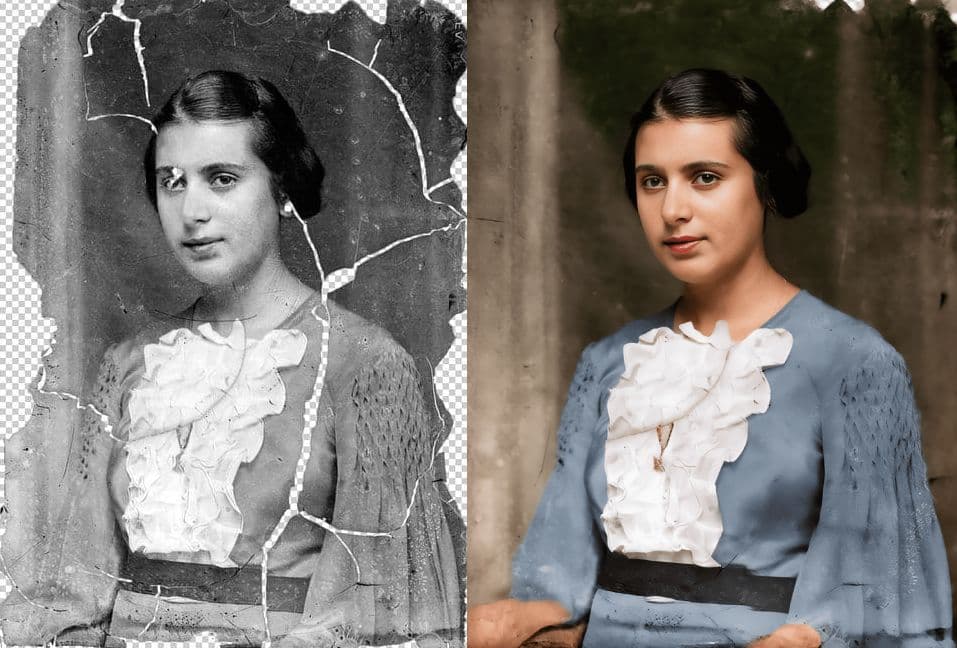
In this complete guide, you’ll learn:
- How to restore damaged and faded photos online
- How AI face enhancement brings portraits back to life
- How colorization works
- How to upscale low-resolution images
- When to choose Advanced Restore vs. individual tools
- Real before & after example
Let’s revive your memories.
Why Old Photos Deteriorate Over Time
Before we start, it helps to understand why vintage photos often look damaged:
- Scratches and cracks from physical wear
- Fading and discoloration from UV exposure
- Dust, stains, and fingerprints
- Loss of detail as chemicals break down
- Low resolution from early cameras and scanning
Luckily, modern AI can intelligently reverse these issues while preserving authenticity and facial identity.
Step 1: Prepare Your Photo for Best Results
For the highest-quality restoration:
✔ Use a high-resolution scan
300 DPI or higher is recommended. Phone photos work too—just ensure good lighting.
✔ Avoid reflections or glare
Take the photo near a window or use indirect lighting.
✔ Keep the image flat
Curved photos distort features.
✔ Supported formats
The Photo Restore supports:
- JPG
- JPEG
- PNG
- WEBP
Step 2: Upload Your Photo
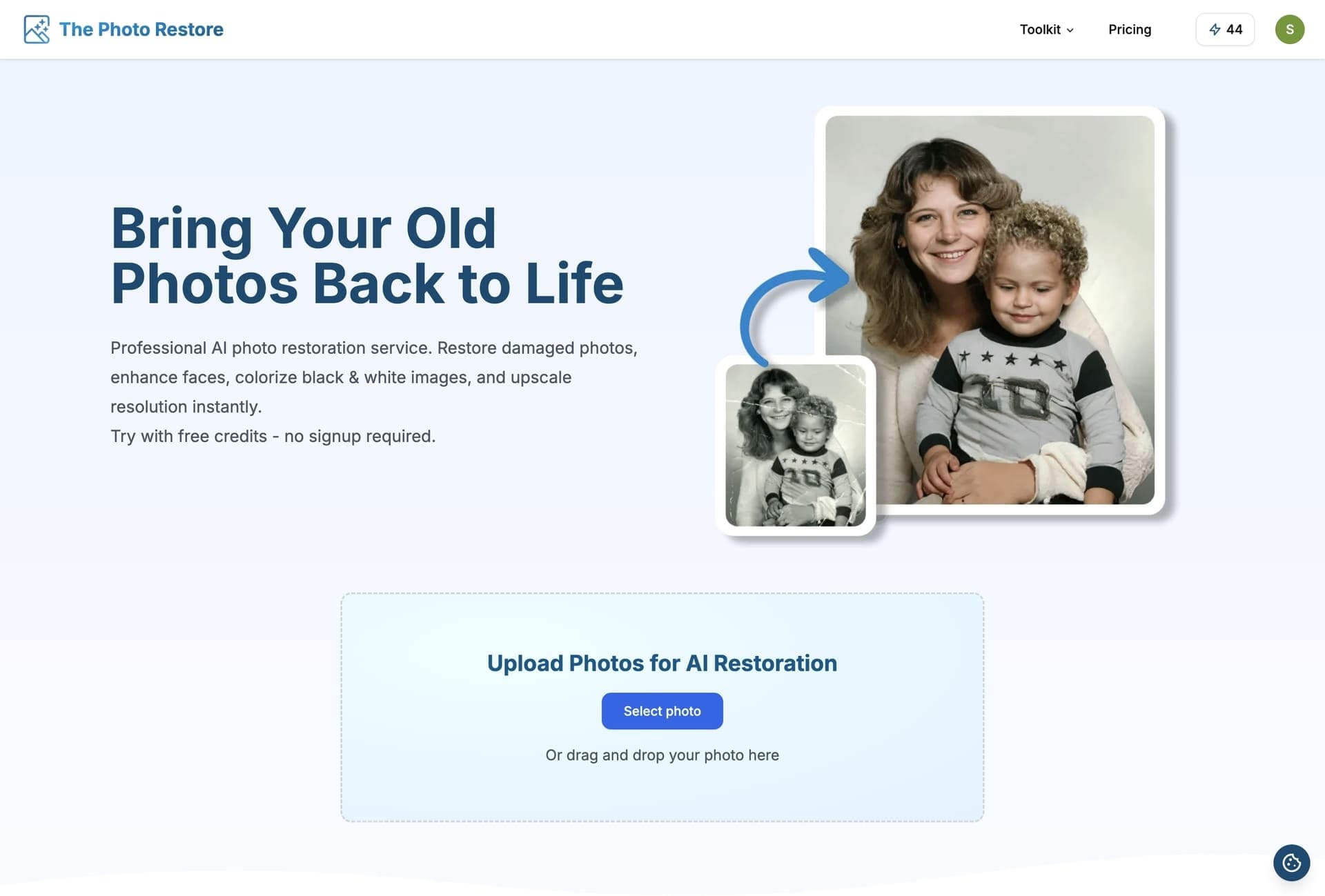
Go to The Photo Restore and click:
Upload Photo → Select Your Image
You can also drag and drop your picture directly into the upload area.
Your image stays private, processed securely, and is deleted after restoration.
Step 3: Choose Your Restoration Options
You can restore photos using either:
Option A: Advanced Restore (All-in-One)
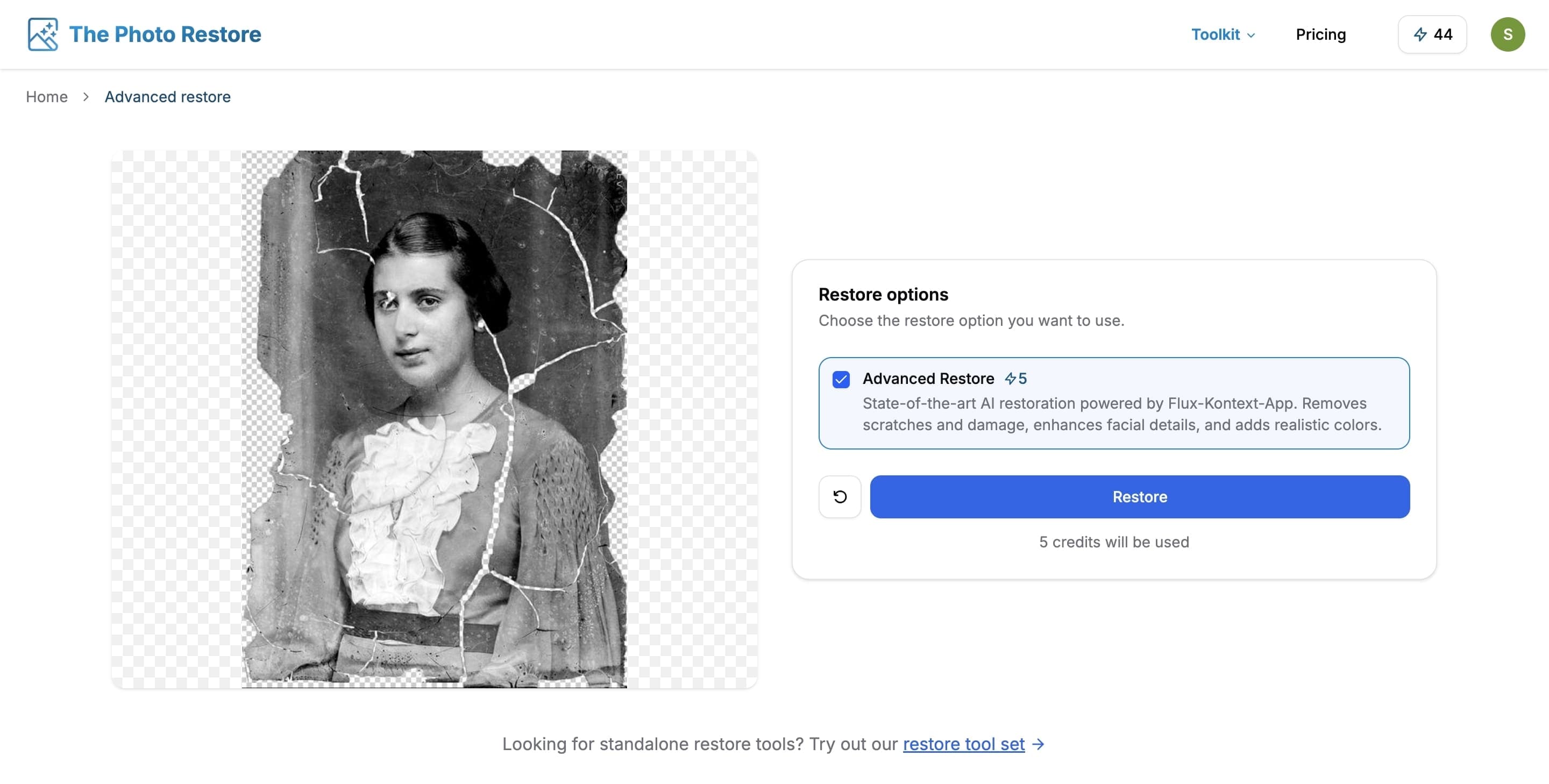
Best for:
- Heavy scratches
- Severe fading
- Blurry or missing facial details
- Black & white images
- Low-resolution photos
Advanced Restore automatically performs:
- Scratch repair
- Face enhancement
- Colorization
- Upscaling
➡️ Try it here: /advanced-restore
Option B: Use Individual AI Tools
If you prefer full control, the /restore page allows you to apply each tool separately:
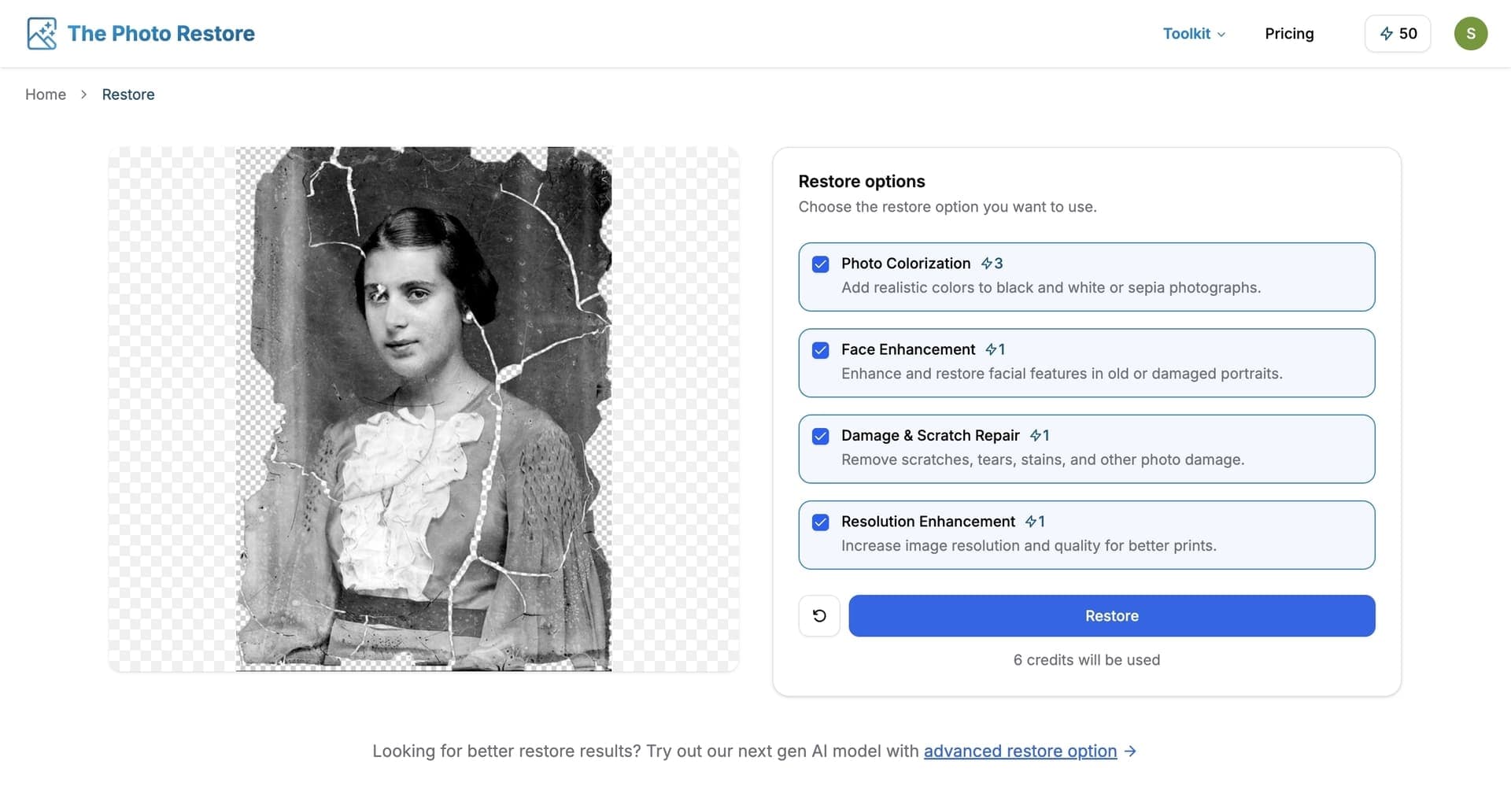
1. Scratch & Damage Repair
Removes:
- Scratches
- Cracks
- Stains
- Dust
- Water damage
This is ideal for scanned photos with visible surface defects.
2. AI Face Enhancement
Perfect for portraits or group photos where faces appear:
- Blurry
- Faded
- Low-resolution
- Damaged or distorted
The AI reconstructs missing facial features while preserving identity and authenticity.
3. Colorize Black & White Photos
Transforms monochrome images into realistic color photos using AI-generated skin tones, clothing colors, and environmental hues.
4. AI Resolution Upscaling
Turns pixelated or low-resolution photos into sharp, high-quality images suitable for printing.
Step 4: Let the AI Process Your Image
Processing usually takes under 10 seconds.
Large or very high-resolution photos may take slightly longer.
Step 5: Download Your Restored Image
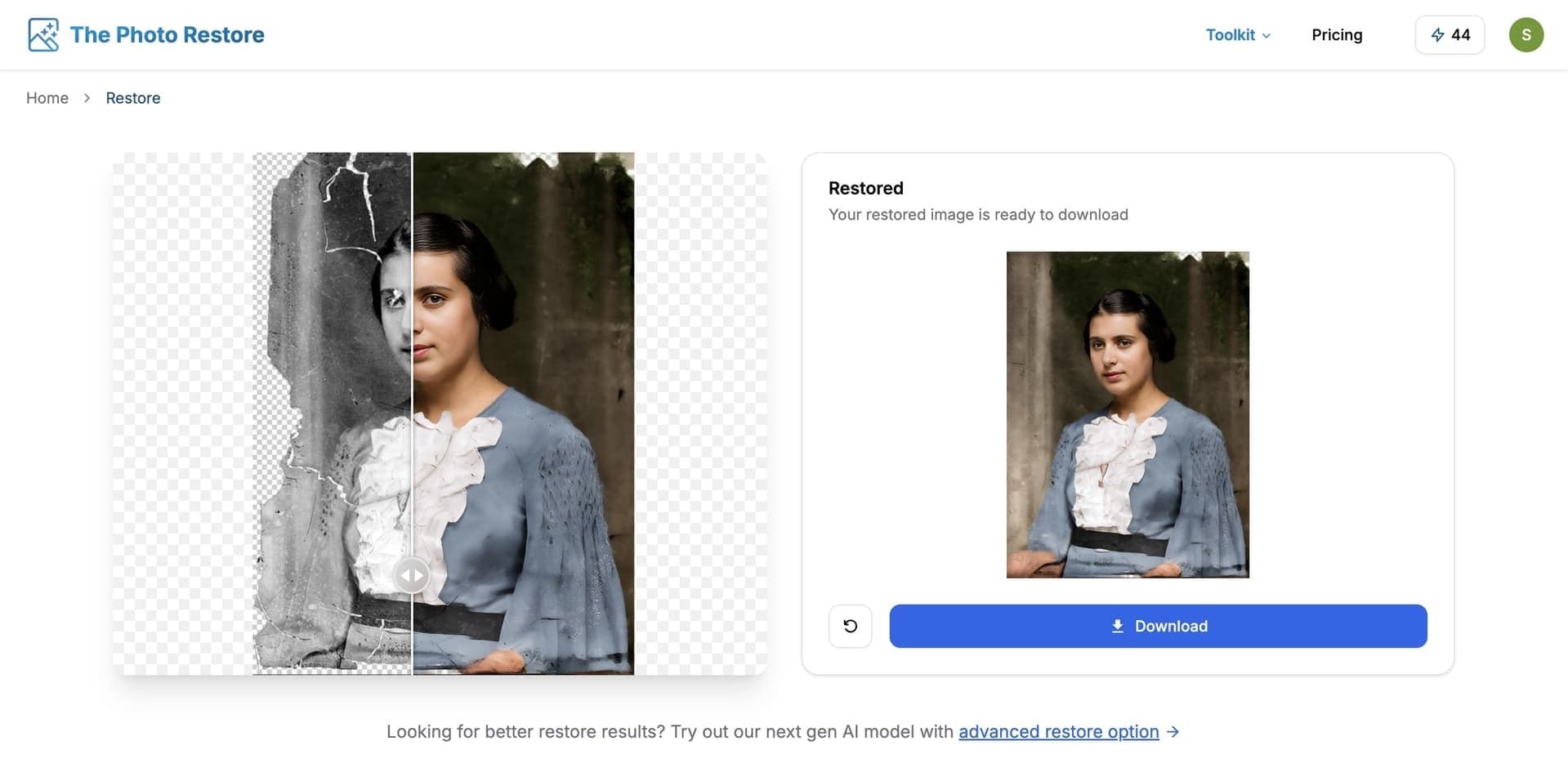
Once complete, just click Download to save your high-quality restored image.
All restored photos are suitable for printing, archiving, family albums, and digital sharing.
Tips for Best Restoration Results
✔ Prefer high-quality scans
Blurry scans = blurry inputs.
✔ Use Advanced Restore for complex damage
It applies the right combination of tools automatically.
✔ Try combining tools
For example:
Scratch Repair → Face Enhancement → Colorize → Upscale.
When Should You Use Advanced Restore?
Choose Advanced Restore if your photo has:
- Multiple types of damage
- Heavy fading
- Low resolution
- Blurry or unclear faces
- Missing details
- Needs colorization + repair + enhancement
It provides the best overall result with one click.
➡️ Try it now: /advanced-restore
Frequently Asked Questions
Is my photo safe?
Yes — your photos are processed securely and deleted immediately after restoration.
Can I restore photos for genealogy or commercial use?
Absolutely. You retain full ownership and may use them for printing, family history, or commercial purposes.
Is there a free trial?
Yes — all users get free credits to try restoration.
Final Thoughts
Restoring old photos used to be time-consuming and expensive.
Now, with AI-powered tools, anyone can revive damaged or fading memories in just a few clicks.
If you’re looking for the fastest and highest-quality results, start with:
🔥 Advanced Restore — the all-in-one restoration model.
Or explore individual tools for more control.
Start restoring your memories today: /restore